USB Malware Prevention: Block Autoplay and Enforce Device Control
Blocking autorun removes the most common infection vector, but legacy firmware updates often bypass standard endpoint security controls entirely.
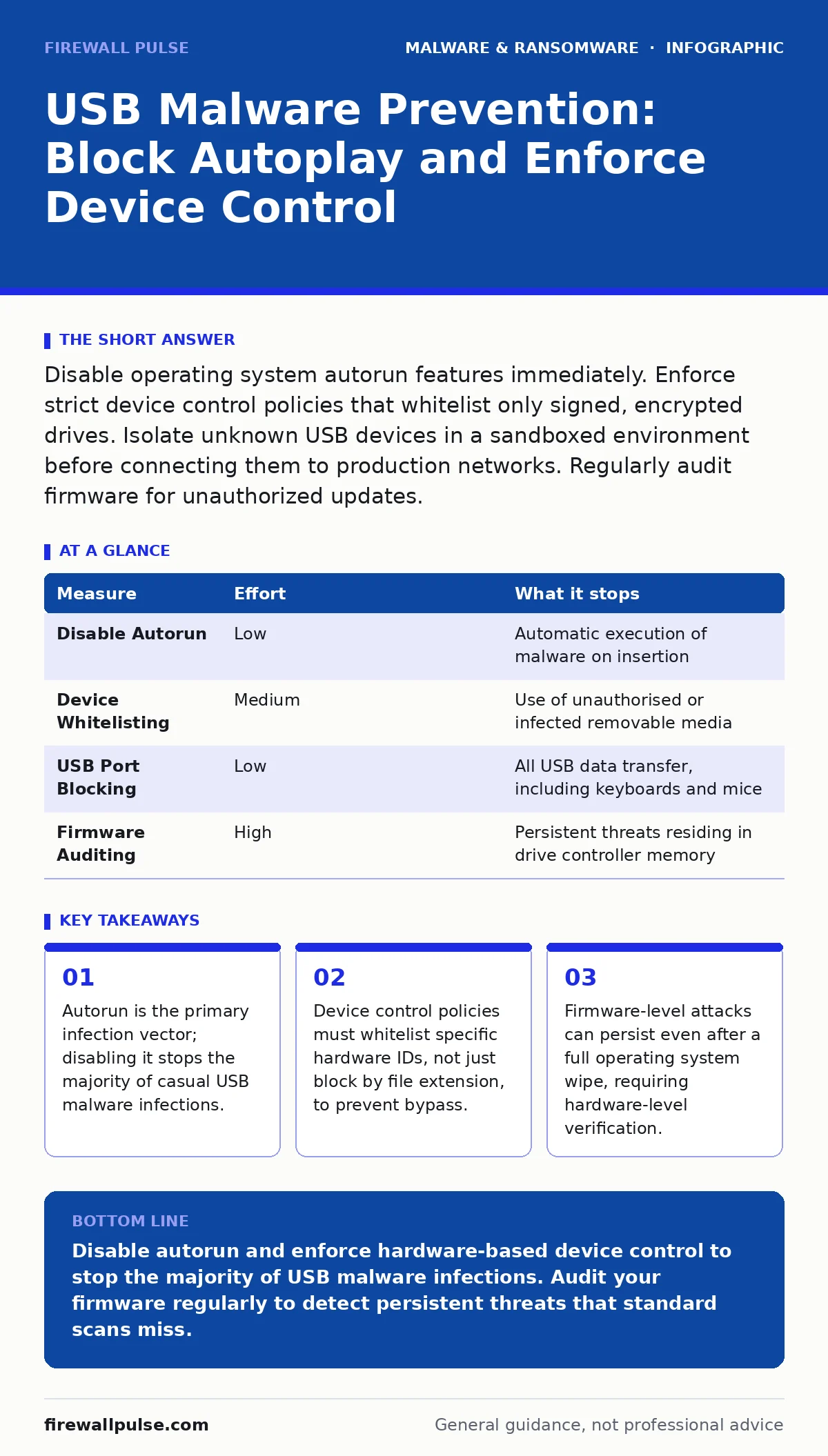
Disable operating system autorun features immediately. Enforce strict device control policies that whitelist only signed, encrypted drives. Isolate unknown USB devices in a sandboxed environment before connecting them to production networks. Regularly audit firmware for unauthorized updates.
Disable Autorun at the System Level
The most immediate risk from USB media is the automatic execution of code. Operating systems historically support a feature called autorun, which executes a predefined script when a removable drive is inserted. This mechanism allows malware to bypass user interaction entirely. You must disable this feature on every endpoint within your environment.
Disabling autorun does not prevent the operating system from recognising the drive. It simply stops the automatic execution of any executable files found on the root directory. Users can still manually browse the drive, which introduces a secondary risk. However, removing the automatic trigger significantly reduces the attack surface for mass-distribution malware.
Configure your group policy or configuration management system to enforce this setting. Do not rely on user discretion. A single endpoint with autorun enabled can serve as a bridge for lateral movement across the network. Verify the setting by inserting a test drive containing a harmless executable file. The system should mount the drive without running the file.
Implement Strict Device Control Policies
Blocking USB ports entirely is rarely a viable option for modern operations. Employees need to transfer files, and technicians require diagnostic tools. Instead of a blanket ban, implement device control policies that whitelist specific hardware. This approach allows necessary functionality while blocking unauthorised devices.
Device control works by checking the hardware ID of the inserted drive against a list of approved devices. If the ID does not match, the operating system ignores the drive or restricts access to read-only mode. This prevents malware from writing to the drive and also stops the drive from executing code. It also mitigates the risk of data exfiltration via removable media.
You must maintain an inventory of approved devices. This includes external hard drives, encryption keys, and diagnostic tools. Update this inventory as hardware changes. An outdated whitelist leads to operational friction, causing users to seek workarounds that bypass security controls. Regular audits ensure that no unauthorised devices have been added to the trusted list.
| Measure | Effort | What it stops |
|---|---|---|
| Disable Autorun | Low | Automatic execution of malware on insertion |
| Device Whitelisting | Medium | Use of unauthorised or infected removable media |
| USB Port Blocking | Low | All USB data transfer, including keyboards and mice |
| Firmware Auditing | High | Persistent threats residing in drive controller memory |
Isolate and Sandbox Unknown Media
Not all USB drives are malicious, but not all can be trusted. When you receive a drive from an external source, treat it as hostile. Connecting it directly to your production network exposes your systems to potential infection. Instead, use an isolated workstation or a virtual machine for inspection.
This isolated environment, often called a sandbox, has no network connectivity to your internal systems. You can mount the USB drive in this environment and scan it for malware. If the drive contains malicious code, the sandbox contains the infection. You can then analyse the threat without risking your primary infrastructure.
Automate this process where possible. Many endpoint security solutions include features that automatically isolate unknown removable media. Configure these tools to alert your security team if suspicious activity is detected. Do not move the drive to a production system until it has passed inspection. This step adds time to the workflow but prevents catastrophic breaches.
Monitor for Firmware-Level Threats
Standard anti-malware solutions scan the file system of the USB drive. They do not typically inspect the firmware of the drive controller. Firmware is the low-level software that controls the hardware. Malware that infects this layer is nearly impossible to remove by formatting the drive or reinstalling the operating system.
These firmware attacks can persist even after a full system wipe. The drive may appear clean, but the malicious code remains in the controller. When connected to a computer, the drive can execute commands or exfiltrate data. Detecting these threats requires specialised tools that can read and verify the firmware signature.
Regularly audit your USB devices for firmware integrity. Compare the current firmware hash against the known good hash provided by the manufacturer. If the hashes do not match, the drive may be compromised. Quarantine the device and investigate further. This measure is resource-intensive but necessary for high-security environments.
Educate Users on Physical Risks
Technical controls are not infallible. Users remain the last line of defence. They must understand the physical risks associated with USB devices. Dropping a drive in a public place is a common social engineering tactic. The finder may insert the drive into a corporate computer out of curiosity or goodwill.
Training should focus on the consequences of inserting unknown media. Explain that even a visually harmless drive can contain sophisticated malware. Provide clear procedures for handling external media received from vendors or partners.
Reinforce these lessons through regular simulations. Test user responses by placing decoy drives in common areas. Measure how many employees report the drive versus how many insert it. Use these results to tailor your training programmes. Awareness reduces the likelihood of human error, which is often the weakest link in security.
See also: IoT Malware Risks: Practical Protection for Small Business Networks · File Hashes in Malware Detection: Why They Fail and What to Do
Review Related Security Postures
USB malware is often part of a broader attack strategy. It may be used to deliver ransomware backups or install web shells for persistent access. Understanding these connections helps you build a more resilient defence. For instance, if a USB drive installs a backdoor, it can bypass traditional perimeter defences.
Consider how USB threats interact with IoT malware. Many IoT devices lack robust operating systems and are vulnerable to physical attacks. A compromised USB drive could update the firmware of an IoT device, turning it into a botnet node. Similarly, mobile malware can spread via USB connections between phones and computers.
Review your disaster recovery plans to ensure they account for USB-related incidents. If a USB drive wipes a critical server, your recovery time objective may be impacted. Ensure your backups are isolated and cannot be modified by removable media. This holistic approach ensures that you are prepared for the full spectrum of threats.
Closing Checklist for Immediate Action
Start with the lowest effort, highest impact measures. These steps can be implemented today and will immediately reduce your risk profile. Do not wait for a comprehensive policy overhaul to begin. Small, consistent actions build a stronger security posture over time.
- Disable autorun on all endpoints using group policy or configuration management tools.
- Audit your device control policies to ensure they whitelist by hardware ID, not file type.
- Isolate all unknown USB media in a sandboxed environment before connecting to production networks.
Key takeaways
- Autorun is the primary infection vector; disabling it stops the majority of casual USB malware infections.
- Device control policies must whitelist specific hardware IDs, not just block by file extension, to prevent bypass.
- Firmware-level attacks can persist even after a full operating system wipe, requiring hardware-level verification.
Disable autorun and enforce hardware-based device control to stop the majority of USB malware infections. Audit your firmware regularly to detect persistent threats that standard scans miss.
Frequently asked questions
Can I use a USB blocker to prevent all malware?
Physical USB blockers prevent data transfer but do not stop wireless attacks or malware introduced via other vectors. They also block necessary peripherals like keyboards.
Is disabling USB ports enough?
No. Attackers can use other interfaces like Thunderbolt or HDMI to transfer data. Device control policies are more effective because they allow necessary devices while blocking unauthorised ones.
How do I detect firmware malware?
Use specialised tools that compare the drive’s firmware hash against the manufacturer’s known good hash. Standard anti-malware software cannot detect these threats.
Should I format suspected drives?
Formatting does not remove firmware-level malware. Quarantine the drive and perform a forensic analysis before deciding whether to destroy or sanitise it.
How this guide was produced: written by the Firewall Pulse editorial team with AI assistance, checked against the public references listed below, and reviewed when the facts change. See our editorial policy or report an error.