How to Prevent Computer Viruses: The Hierarchy of Controls
Executing files from untrusted sources remains the primary infection vector, making user behaviour the most effective defence against persistent malware.

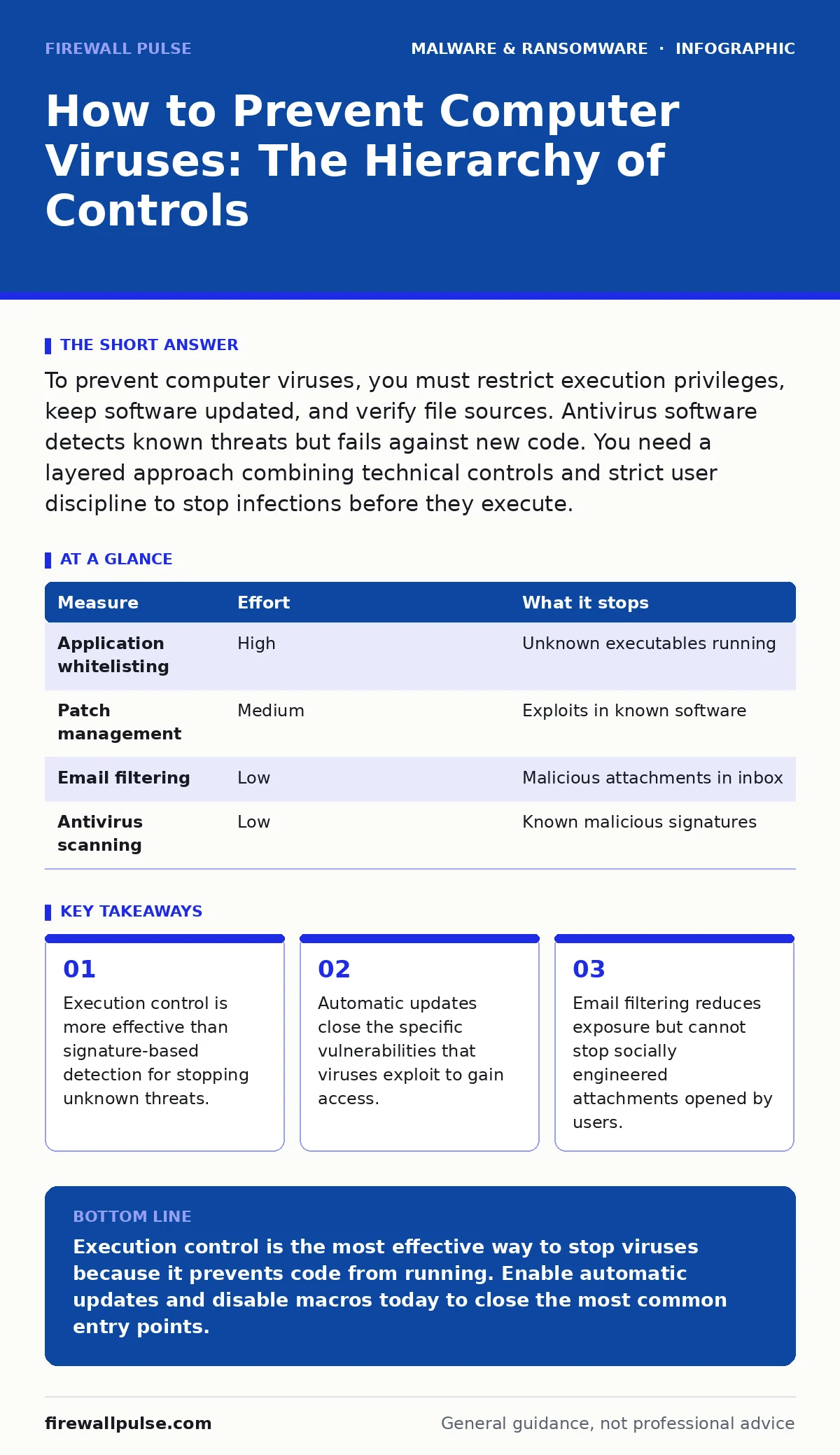
To prevent computer viruses, you must restrict execution privileges, keep software updated, and verify file sources. Antivirus software detects known threats but fails against new code. You need a layered approach combining technical controls and strict user discipline to stop infections before they execute.
How to Prevent Computer Viruses
You want to know how to prevent computer viruses. The short answer is that you cannot stop every virus with a single tool. You must reduce the surface area where a virus can land and execute. Most infections occur because a user runs a file they should not run. A virus is a piece of code that attaches itself to a host program and replicates when that program runs. Unlike a worm, a virus requires user action to spread. This distinction matters because it means your primary defence is controlling what gets executed on your system, not just what gets downloaded.
The Hierarchy of Prevention
Not all security measures remove the same amount of risk. You should prioritise controls that stop execution over controls that only detect presence. A measure that prevents a file from running is superior to one that alerts you after it has already modified your system. The table below ranks common measures by their effectiveness in removing risk.
| Measure | Effort | What it stops |
|---|---|---|
| Application whitelisting | High | Unknown executables running |
| Patch management | Medium | Exploits in known software |
| Email filtering | Low | Malicious attachments in inbox |
| Antivirus scanning | Low | Known malicious signatures |
Application whitelisting allows only approved software to run. This is the most effective control because it blocks any new or modified code, regardless of whether security vendors have identified it as malicious. It requires initial configuration but removes the need for constant vigilance.
The Limits of Antivirus Software
Antivirus software relies on signatures, which are unique patterns of code identified in known viruses. When your scanner finds a match, it quarantines the file. This method works well for widespread, older threats. It fails against new viruses, or zero-day threats, that have not been seen before. It also fails against polymorphic viruses, which change their code structure to avoid detection while keeping the same function. Relying solely on antivirus leaves you exposed to anything new. You must treat antivirus as a safety net, not a wall.
Update Management as a Barrier
Viruses often exploit vulnerabilities in software to gain initial access. A vulnerability is a flaw in code that allows an attacker to bypass security controls. When vendors fix these flaws, they release updates. If you do not install these updates, the door remains open. Automatic updates ensure that the moment a fix is available, your system receives it. This removes the human element of forgetting to patch. You should enable automatic updates for your operating system, web browser, and any third-party applications that handle external data.
Email and Attachment Hygiene
Email is the most common delivery method for computer viruses. Attackers use social engineering to trick you into opening an attachment. The attachment may appear to be an invoice, a resume, or a shipping notification. You must verify the source of any unexpected file. If you did not request the document, do not open it. Contact the sender through a different channel to confirm they sent it. This step seems slow, but it stops the majority of infections. Email filtering helps by blocking obvious threats, but it cannot read your mind or know if a legitimate-looking file contains hidden malicious code.
See also: Patching Without Panic: Secure Change Management for Small Teams · Use-After-Free Vulnerabilities: Risks and Protection for Small Businesses
The Hidden Cost of Convenience
Many users disable security warnings to save time. You might turn off macro security in office documents or allow scripts to run in your browser. This convenience creates a hidden cost. Macros are small programs embedded in documents that automate tasks. Attackers hide viruses inside macros. When you enable macros, you are giving the virus permission to run. Disabling macros by default and only enabling them for trusted sources removes this risk. The effort of enabling macros for one trusted document is far less than the effort of cleaning an infected system.
What Does Not Work On Its Own
Several popular measures are ineffective if used in isolation. A firewall blocks network traffic based on rules. It does not inspect the content of files you download from allowed websites. A strong password protects your account login. It does not stop a virus from running if you have already logged in and clicked a malicious link. These measures are necessary but insufficient. You need depth. You need multiple layers that catch what the previous layer missed. This is the principle of defence in depth.
Related Threat Vectors
Understanding how to prevent computer viruses requires looking at related threats. A virus on your desktop computer is different from mobile malware, which targets operating systems with different permission models. You should also consider USB malware, which spreads via physical drives. If you plug in an untrusted USB drive, it can auto-run a virus. Similarly, malicious browser extensions can inject code into web pages you visit. These vectors bypass traditional email filters. Your prevention strategy must account for physical media and browser plugins, not just email attachments.
Immediate Action Checklist
You can reduce your risk significantly today. Do not wait for a major security overhaul. Start with these three steps. They require minimal technical skill but provide immediate protection against the most common infection methods.
- Enable automatic updates for your operating system and browser.
- Disable macro execution in office applications by default.
- Install an ad-blocker to prevent drive-by downloads from malicious sites.
These steps address the most likely entry points. They do not guarantee complete safety, but they raise the bar for attackers. You force them to use more complex, and therefore rarer, methods to infect your system.
Key takeaways
- Execution control is more effective than signature-based detection for stopping unknown threats.
- Automatic updates close the specific vulnerabilities that viruses exploit to gain access.
- Email filtering reduces exposure but cannot stop socially engineered attachments opened by users.
Execution control is the most effective way to stop viruses because it prevents code from running. Enable automatic updates and disable macros today to close the most common entry points.
Frequently asked questions
Can a computer virus delete my files permanently?
Yes, some viruses are designed to corrupt or delete data. This is why regular backups are critical. Backups allow you to restore files even if a virus destroys the originals.
Do I need antivirus if I use a firewall?
Yes, because a firewall controls network traffic, not file execution. A virus can arrive through allowed traffic, such as a downloaded file, and run without the firewall knowing.
How do I know if my computer has a virus?
Look for unusual behaviour, such as slow performance, unexpected pop-ups, or programs starting on their own. These are signs that malicious code may be running in the background.
Can a virus infect my computer just by visiting a website?
It is rare but possible if your browser has unpatched vulnerabilities. This is called a drive-by download. Keeping your browser updated prevents this specific type of infection.
How this guide was produced: written by the Firewall Pulse editorial team with AI assistance, checked against the public references listed below, and reviewed when the facts change. See our editorial policy or report an error.