Browser Hijacker Removal: Response and Recovery Steps
Browser hijackers often install root-level persistence mechanisms that survive standard browser resets, requiring deep system analysis.

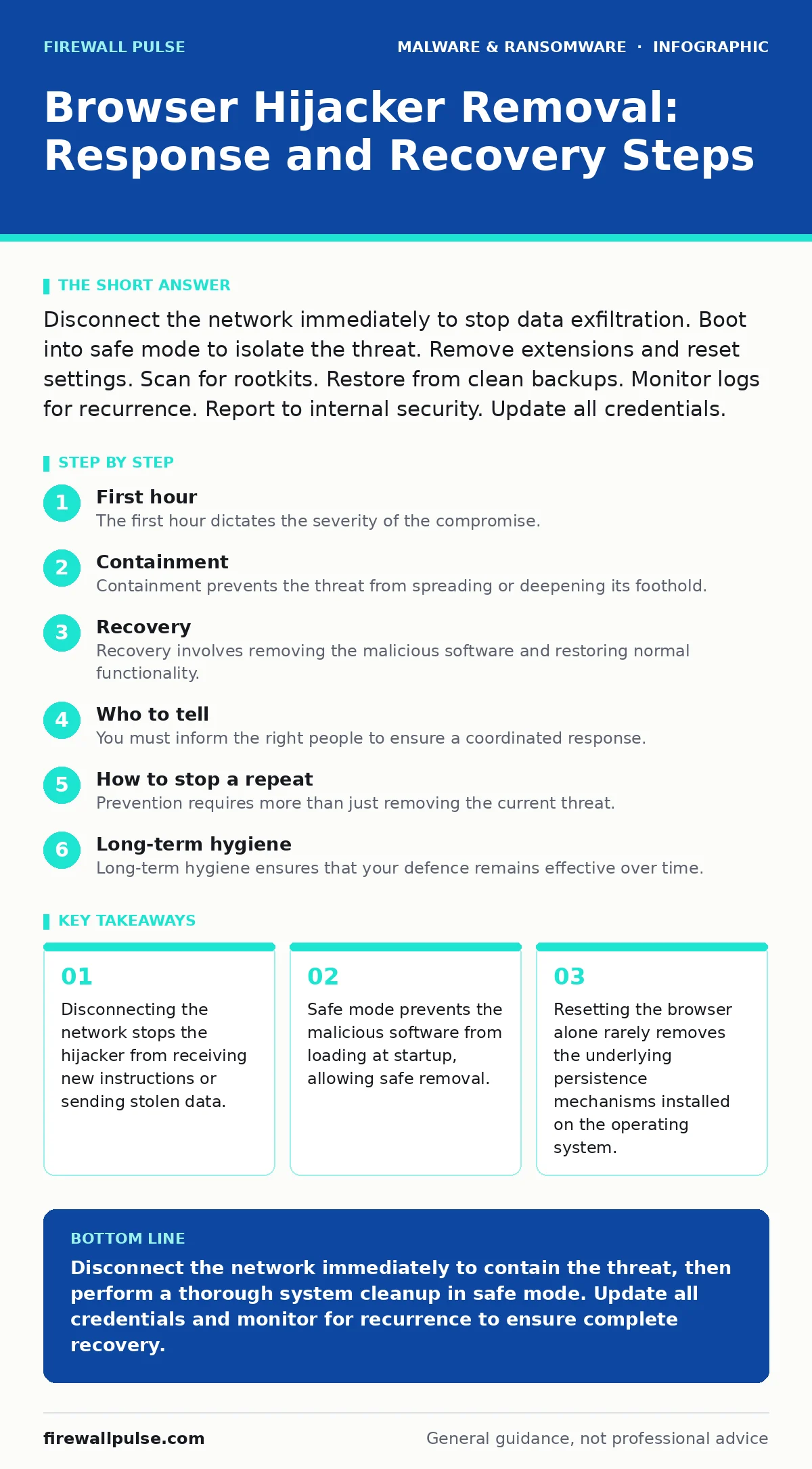
Disconnect the network immediately to stop data exfiltration. Boot into safe mode to isolate the threat. Remove extensions and reset settings. Scan for rootkits. Restore from clean backups. Monitor logs for recurrence. Report to internal security. Update all credentials.
First hour
The first hour dictates the severity of the compromise. Browser hijackers modify settings to redirect traffic, inject ads, or harvest credentials. They often install helper objects that persist beyond browser resets. You must act fast to limit exposure.
- Disconnect the affected device from the network. Unplug the Ethernet cable or disable Wi-Fi. This stops the hijacker from communicating with its command and control server.
- Identify the scope. Check if other devices show similar symptoms. Look for unexpected proxy settings or DNS changes.
- Do not log in to any accounts on the affected machine. The hijacker may be logging keystrokes or capturing session cookies.
- Document the symptoms. Note the specific browser behaviour, such as forced redirects or changed homepages. This aids forensic analysis later.
Containment
Containment prevents the threat from spreading or deepening its foothold. Browser hijackers often come bundled with other malicious software. They may modify system files to ensure they start every time the computer boots. You need to isolate the threat from the rest of your environment.
- Boot the device into safe mode. This loads the operating system with minimal drivers and services. Most hijackers rely on standard browser processes that do not run in safe mode.
- Check for unauthorized extensions. Look for extensions you did not install. Pay attention to extensions with generic names or poor ratings.
- Review proxy settings. Hijackers often set local proxies to intercept traffic. Reset these to default or disable them entirely.
- Check DNS settings. Ensure the device uses trusted DNS servers. Hijackers may change these to redirect you to malicious sites.
If you suspect the hijacker has accessed sensitive data, treat this as a credential compromise. Assume any password stored in the browser is exposed.
Recovery
Recovery involves removing the malicious software and restoring normal functionality. This is not just about deleting an extension. You must remove the underlying files and registry entries that allow the hijacker to return.
- Uninstall suspicious programs. Check your installed applications list for anything unusual. Look for programs installed around the time the hijacker appeared.
- Reset browser settings. Use the browser's built-in reset function. This clears cookies, cache, and extensions. It restores default settings for the homepage and search engine.
- Clear browser cache and cookies. This removes any temporary files the hijacker may have used. It also forces re-authentication for any sites you were logged into.
- Run a full system scan. Use a reputable antivirus or anti-malware tool. Ensure the tool is up to date. A standard scan may miss rootkits or advanced persistent threats.
Suppose you find a file hash that matches a known malware signature. This confirms the presence of malicious software. You can use this information to block similar threats in your network perimeter. For deeper analysis of file hashes in malware detection, consult your existing documentation.
Who to tell
You must inform the right people to ensure a coordinated response. Silence allows the threat to persist and spread. Transparency helps prevent future incidents.
- Inform your IT support team. They can help with technical removal and system restoration. They may also need to update network security rules.
- Notify your security operations team. They can monitor for similar activity across the network. They can update threat intelligence feeds.
- Alert affected users. If the hijacker accessed user data, they need to know. They must change their passwords and monitor their accounts for suspicious activity.
- Report to management. They need to understand the risk and resource implications. This helps in planning for future security improvements.
If the hijacker accessed sensitive customer data, you may have legal obligations to report the incident. Check your local regulations and company policies.
How to stop a repeat
Prevention requires more than just removing the current threat. You must address the vulnerabilities that allowed the hijacker to install in the first place. Most browser hijackers enter through user action, such as downloading free software or clicking deceptive ads.
- Educate users. Teach them to recognise bundled software. Explain how to read installation prompts carefully. Show them how to decline optional offers.
- Implement application whitelisting. Only allow approved applications to run. This prevents unknown software from installing itself.
- Keep software updated. Ensure browsers and operating systems are patched. Updates often fix vulnerabilities that hijackers exploit.
- Use standard user accounts. Limit administrative privileges. This prevents malicious software from making system-wide changes.
- Review browser permissions. Regularly check which extensions have access to your data. Remove any that do not need broad permissions.
Imagine a user installs a free PDF converter. The installer includes a browser toolbar that hijacks search results. If the user had administrative rights, the toolbar could modify system files. With standard rights, it is limited to the user's profile, making removal easier.
See also: How to Implement XDR: A Practical Step-by-Step Rollout Plan · SOAR Explained: Automating Security Operations Without Breaking Things
Long-term hygiene
Long-term hygiene ensures that your defence remains effective over time. Threat actors constantly adapt their techniques. What works today may fail tomorrow. You must maintain a proactive stance.
- Monitor browser behaviour. Look for sudden changes in homepage, search engine, or new toolbars. Report these immediately.
- Regularly audit extensions. Remove extensions you do not use. Check for updates to ensure they are secure.
- Use ad blockers. These can prevent many hijacker installers from running. They also reduce the risk of clicking deceptive ads.
- Back up your data. Regular backups allow you to restore your system if a hijacker causes significant damage. Store backups offline to protect them from ransomware.
For a broader view on protecting connected devices, refer to the guide on IoT malware. While browser hijackers target computers, they can be a stepping stone to broader network compromises.
When to seek help
Some hijackers are deeply embedded in the system. They may use rootkit techniques to hide from standard security tools. If you cannot remove the threat, seek professional help.
- Consult your security team. They have tools and expertise to detect and remove advanced threats.
- Use specialised removal tools. Some vendors offer tools specifically designed to remove browser hijackers. Ensure these tools are from reputable sources.
- Consider reimaging the system. If the hijacker has deeply compromised the operating system, a clean reinstall may be the only option. This ensures no hidden components remain.
Do not ignore persistent issues. A hijacker that returns after removal is likely using advanced persistence mechanisms. Ignoring it allows the threat to grow and potentially lead to more severe compromises, such as web shells or zero-day malware exploitation.
Key takeaways
- Disconnecting the network stops the hijacker from receiving new instructions or sending stolen data.
- Safe mode prevents the malicious software from loading at startup, allowing safe removal.
- Resetting the browser alone rarely removes the underlying persistence mechanisms installed on the operating system.
Disconnect the network immediately to contain the threat, then perform a thorough system cleanup in safe mode. Update all credentials and monitor for recurrence to ensure complete recovery.
Frequently asked questions
Can a browser hijacker steal my passwords?
Yes, if it has access to your browser profile, it can read stored passwords and session cookies. Change all passwords immediately after removal.
Is a browser reset enough to remove a hijacker?
No, a browser reset clears browser data but often leaves underlying system files and registry entries intact. You must remove the associated programs and scan the system.
How do I know if my browser is hijacked?
Look for unexpected changes to your homepage, search engine, or new toolbars. Notice if you are redirected to unfamiliar websites or see excessive ads.
Should I reinstall my operating system?
Only if you cannot remove the hijacker through standard methods. Reinstalling is a last resort that ensures a clean system but requires significant time and effort.
How this guide was produced: written by the Firewall Pulse editorial team with AI assistance, checked against the public references listed below, and reviewed when the facts change. See our editorial policy or report an error.